Material chat to clarify questions
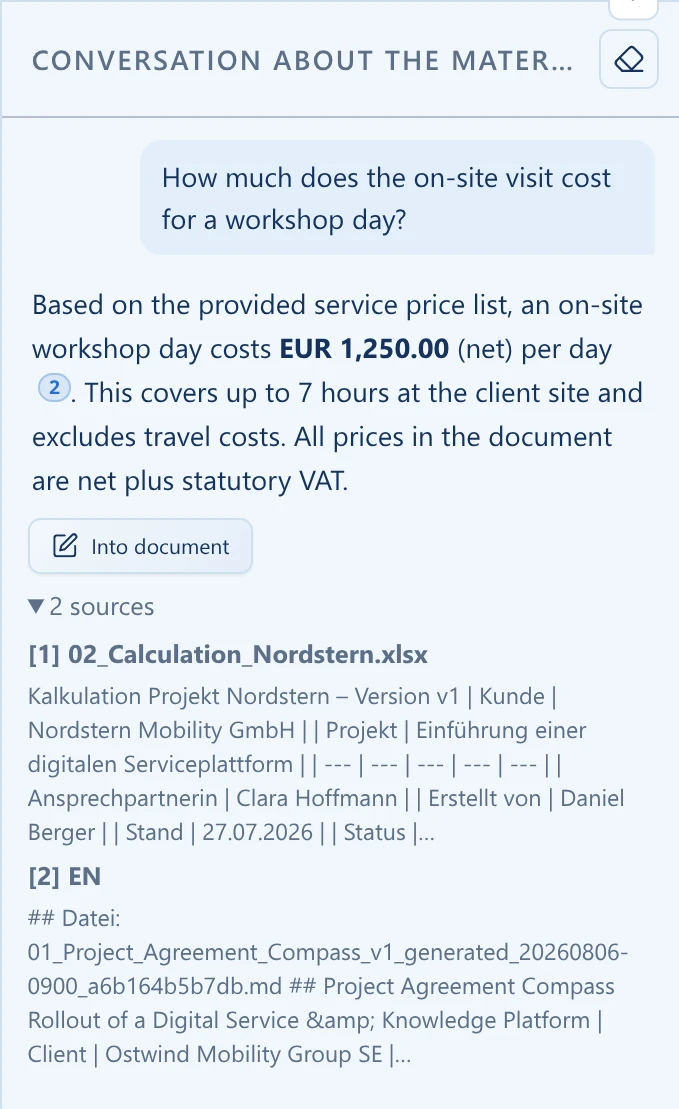
In the chat on the right, you query the linked material: What was agreed? What numbers are in the documents? What's still open? You know what you're building on before the draft appears.
A solid proposal or a clean report doesn't come from a single prompt. In the AI Workshop you gather the relevant information from Alcilla, add external files, and give the AI a concrete brief. The result is a draft you can refine.
The workshop taps into everything in the Alcilla index and accepts external files on top. You choose what belongs, clarify details in the chat, and give a writing brief at the end. Gathering and writing stay in one workspace.
In the chat on the right, you query the linked material: What was agreed? What numbers are in the documents? What's still open? You know what you're building on before the draft appears.
In the document area, describe what you need. The AI creates a draft based on the selected material, which you then refine.

Instead of searching through multiple modules: Omnisearch finds emails, notes, documents, and transcripts across the full Alcilla index. Results land in the material area with one click.
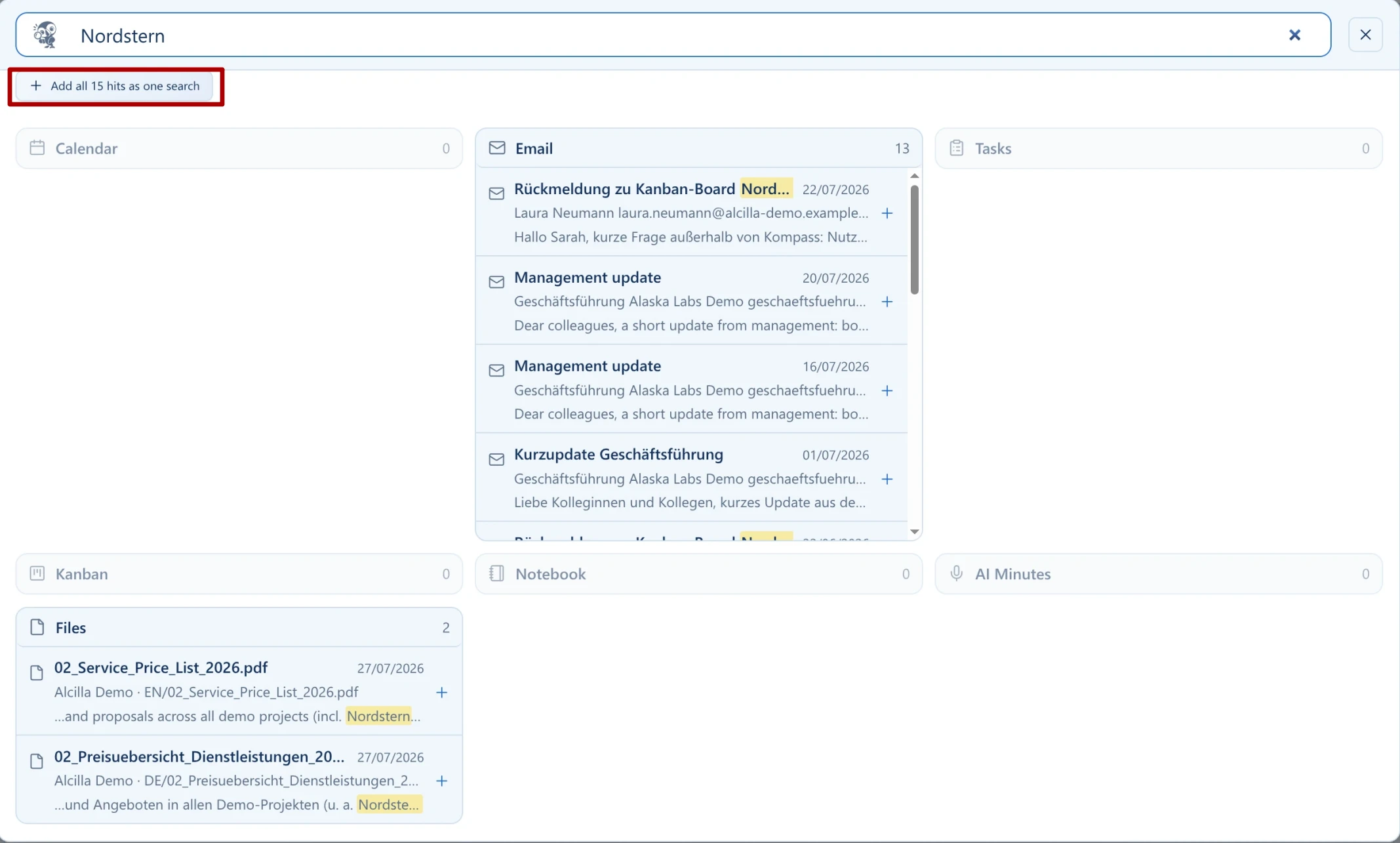
Email, document, note, transcript: If it's already in Alcilla, just link it. No re-uploading, no copying.
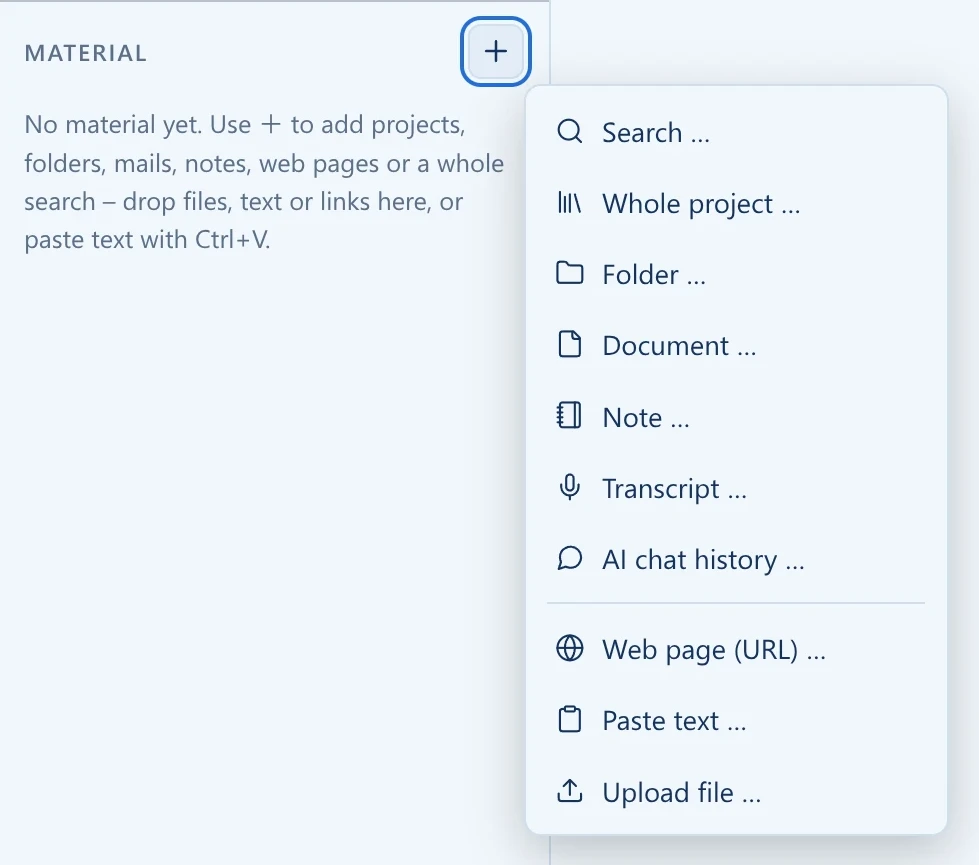
What's not in the index yet comes in via upload, web address, or pasted text. Internal and external sources are then available together.
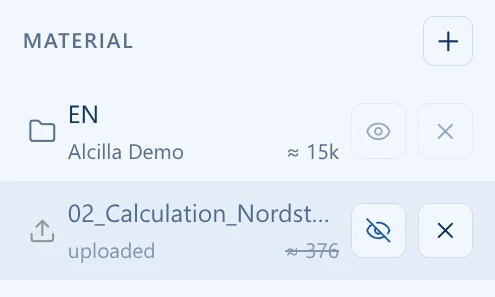
Not every task needs all the material. You choose whether the draft is based on individual sources or the full material set of the workshop.
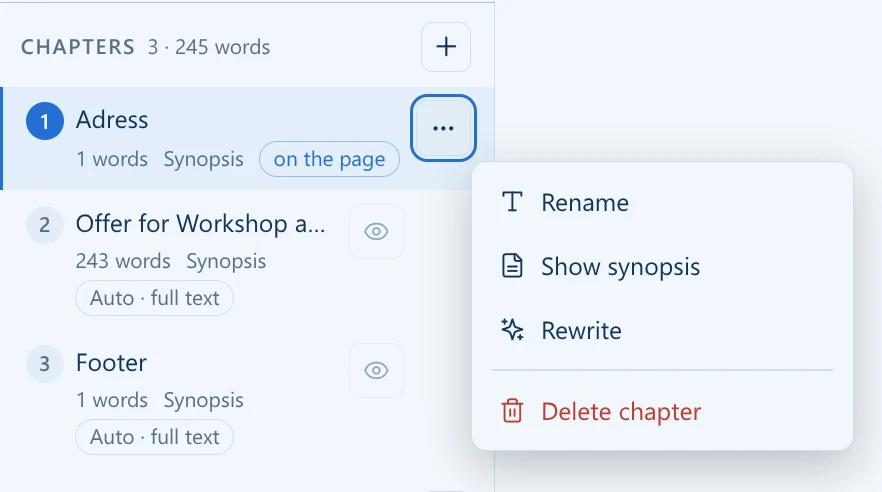
Split longer documents into individual chapters, edit them separately, rename them, and rearrange their order. This keeps even extensive drafts clearly structured and easy to navigate.
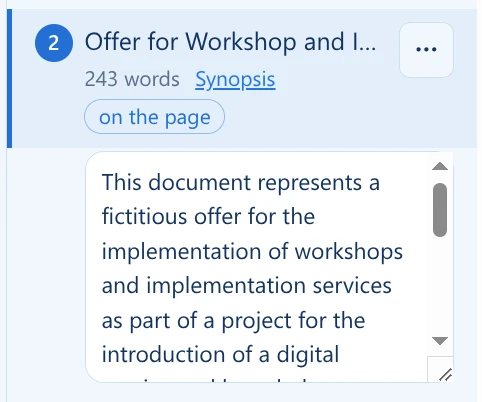
The AI creates a summary synopsis for each chapter. When the context becomes too large, it uses these synopses instead of the full chapter text.
Whether proposal, report, or concept: Every task has its own space where material and result stay together.
The draft appears in the document editor. Set headings, build lists, insert tables — all from the toolbar.

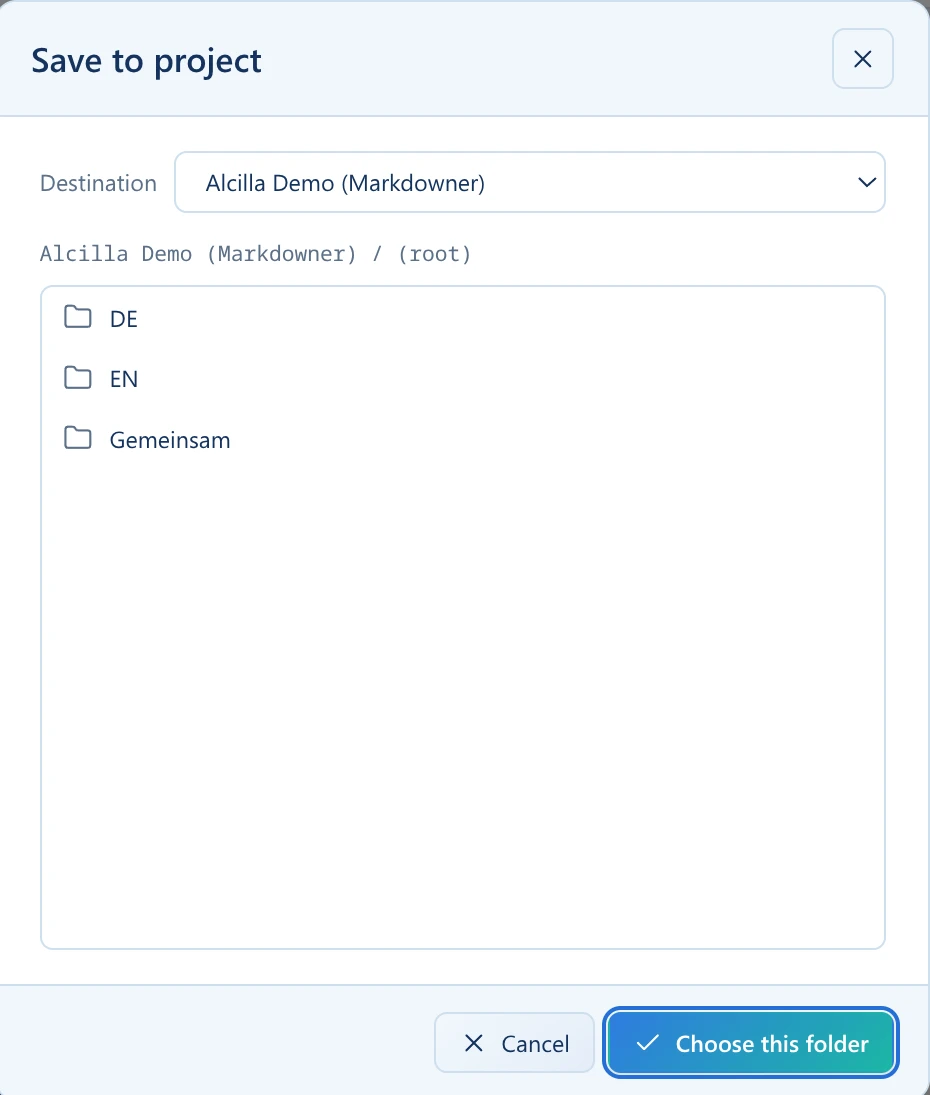
Save the finished document. It's available in the project and ready for further editing or handoff.
The information for a good document rarely lives in one place. Part of it is in the project, another part in emails, yet another in a PDF that was forwarded by mail. The workshop turns these scattered sources into a deliberate context and from that, a text.
Alcilla has already indexed it, the workshop links it. No re-uploading for every new document.
On the right, you search and clarify. In the center, the document takes shape. Two things that don't work well at the same time.
You decide which sources feed into the draft.
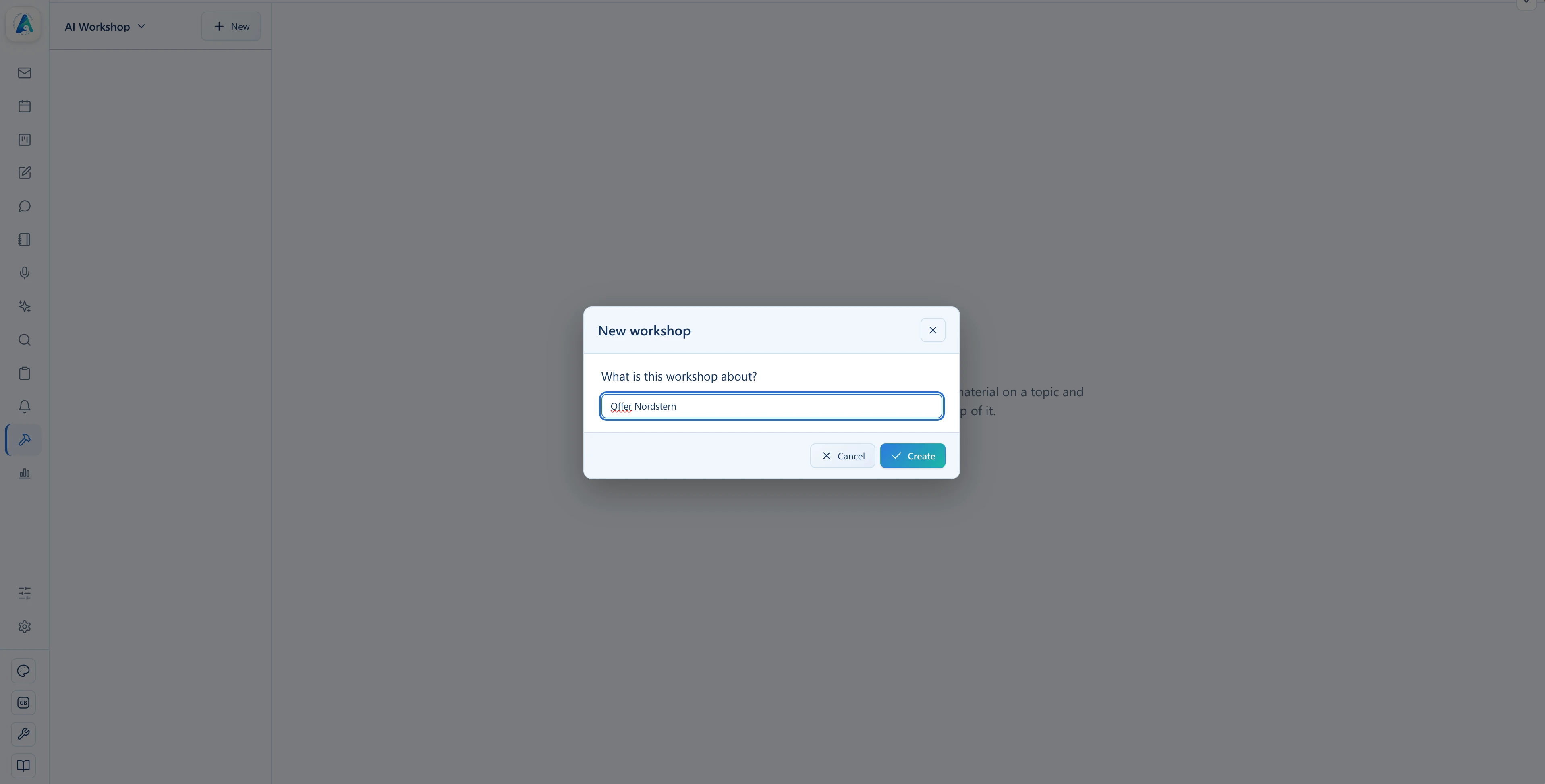
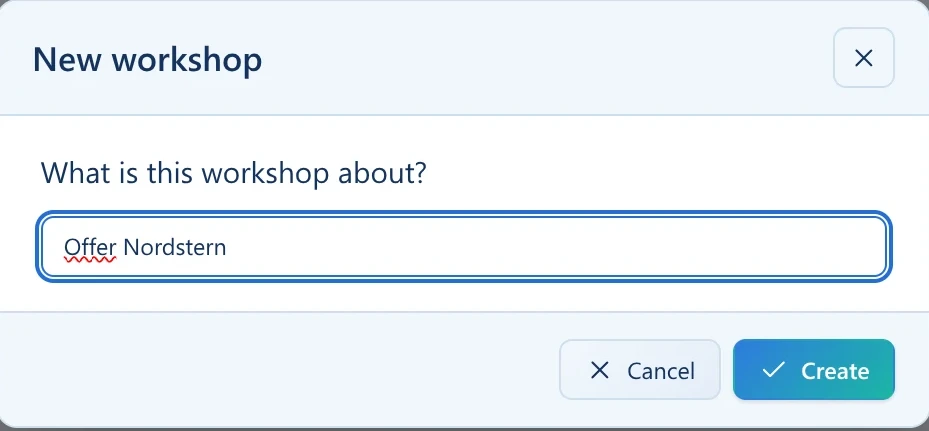
New workshop for the task. Material, questions, and draft now share one space.
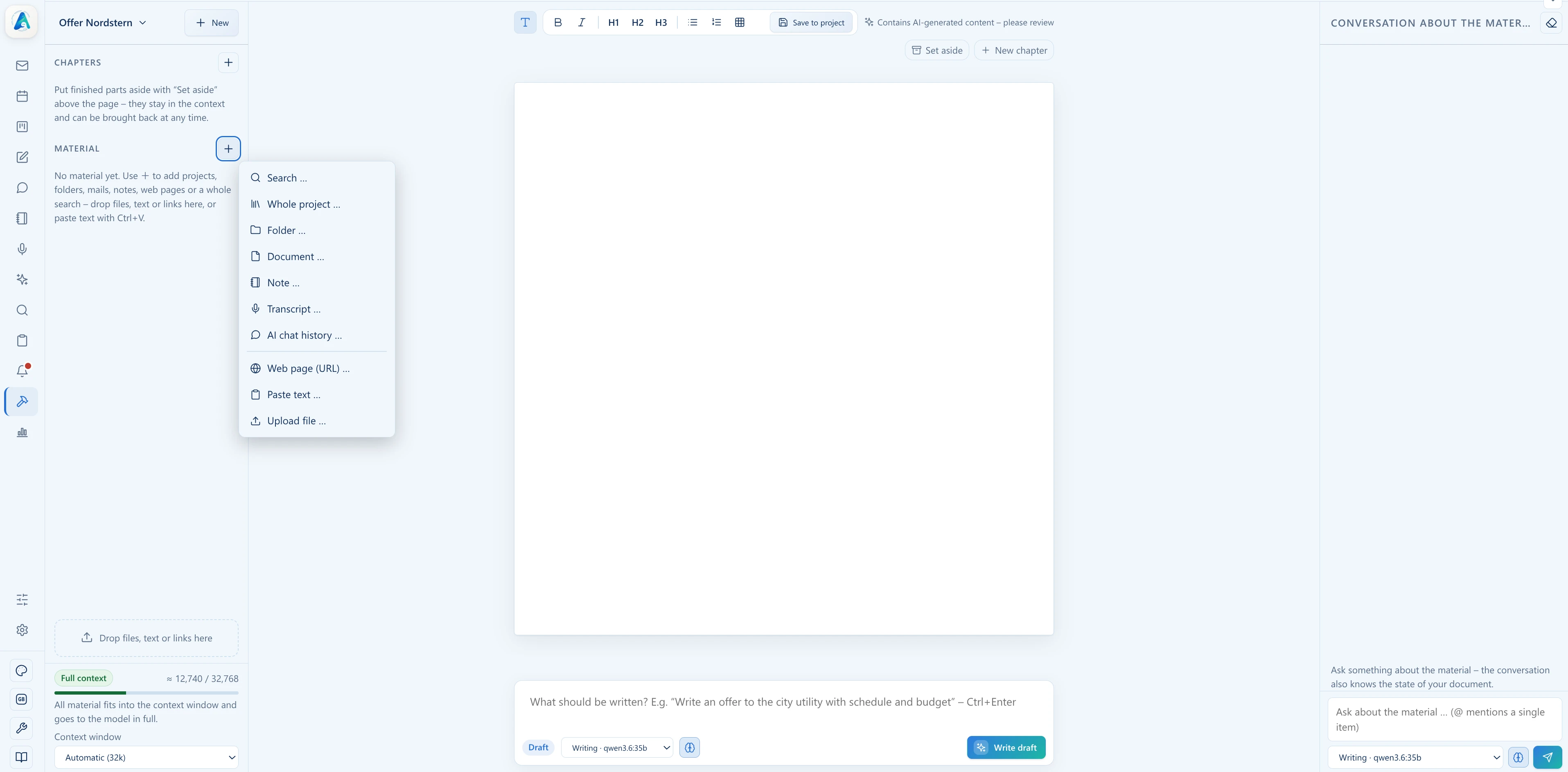
A whole project, a folder, or individual documents, notes, transcripts, or chat histories. Whatever’s in Alcilla, you can link it.
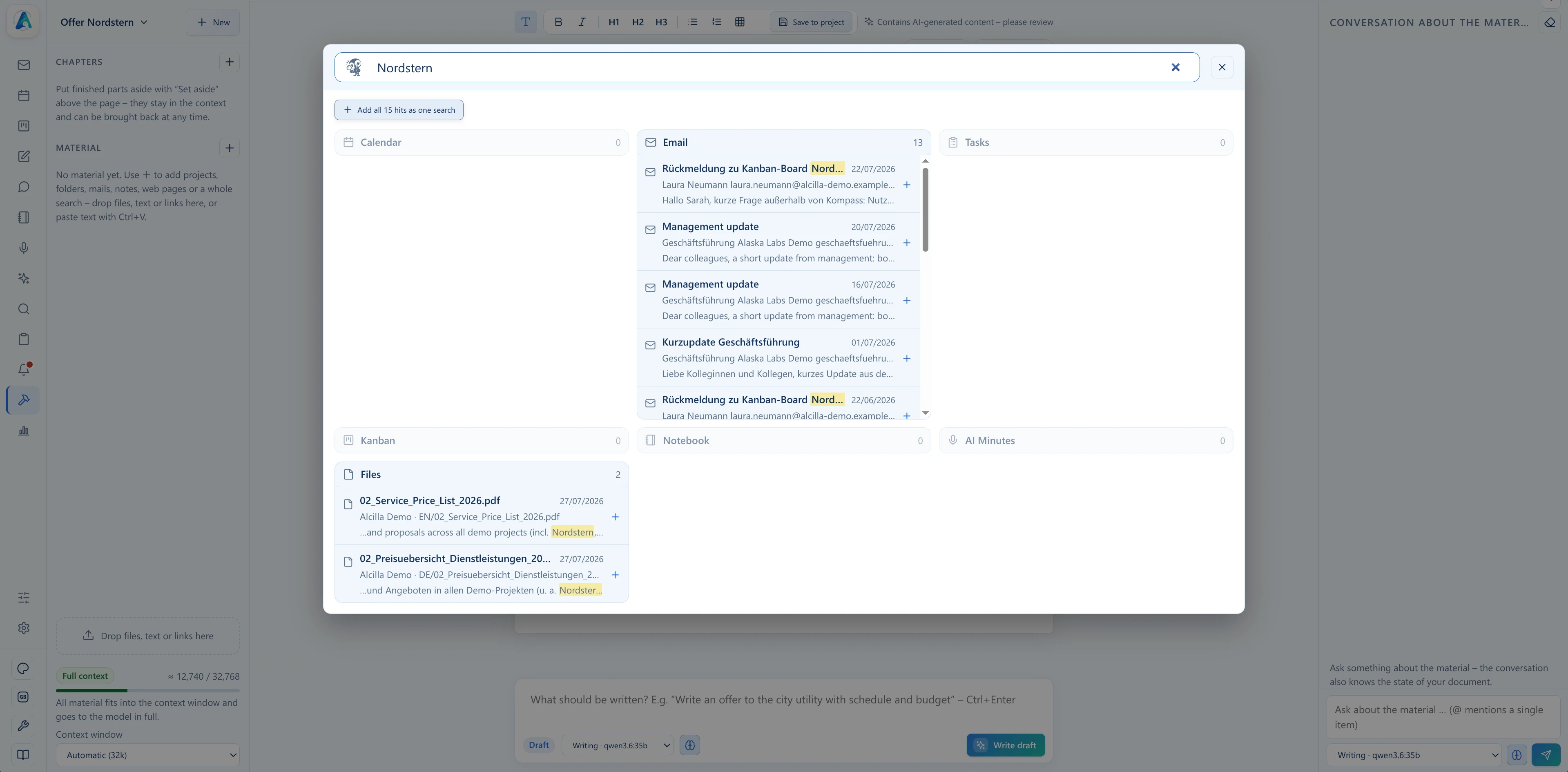
The search scans emails, tasks, notes, transcripts, and files in the index. Take over matching results directly.
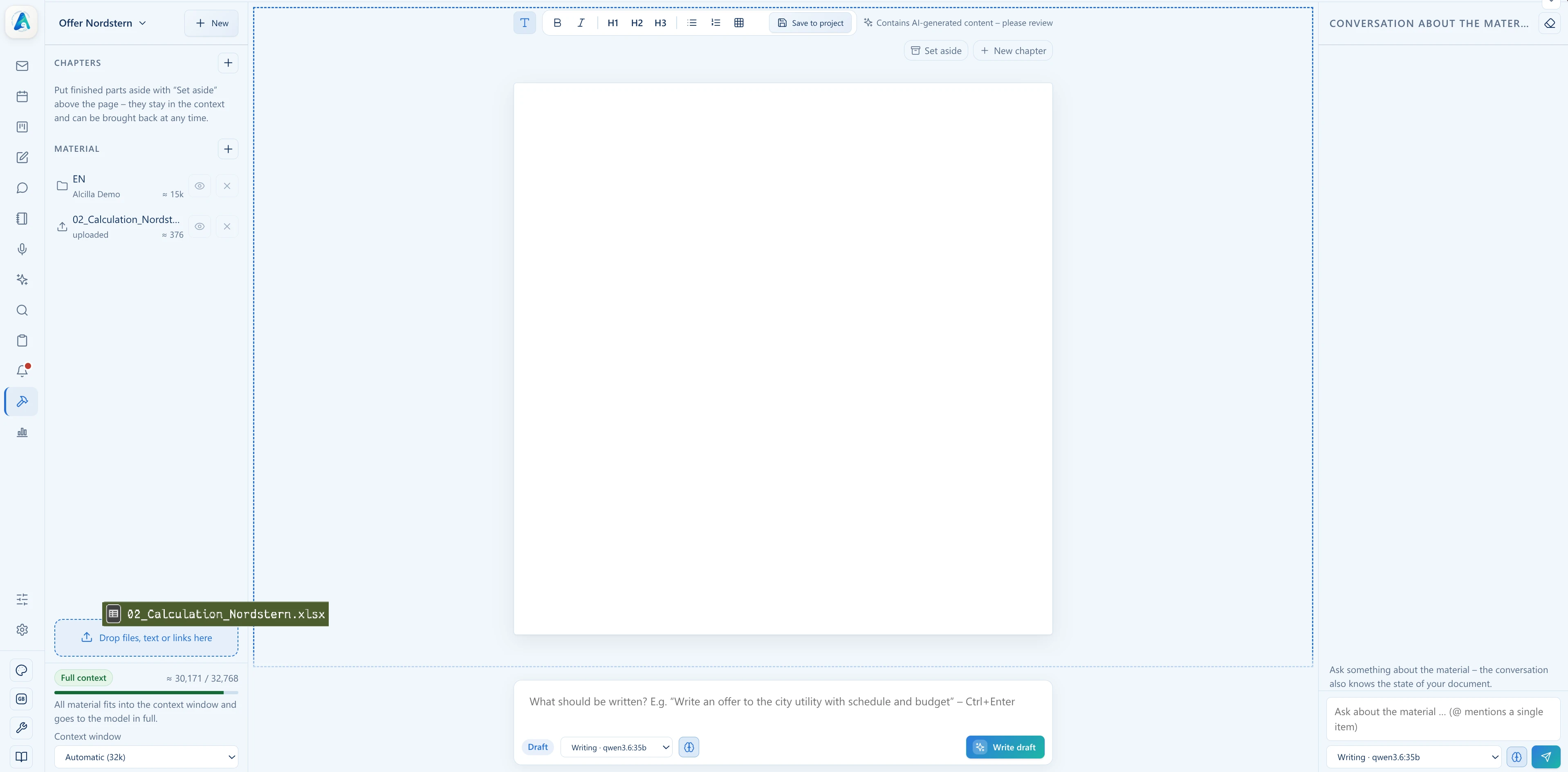
Files that aren’t in the index yet can simply be uploaded. Web addresses and pasted text are also possible.
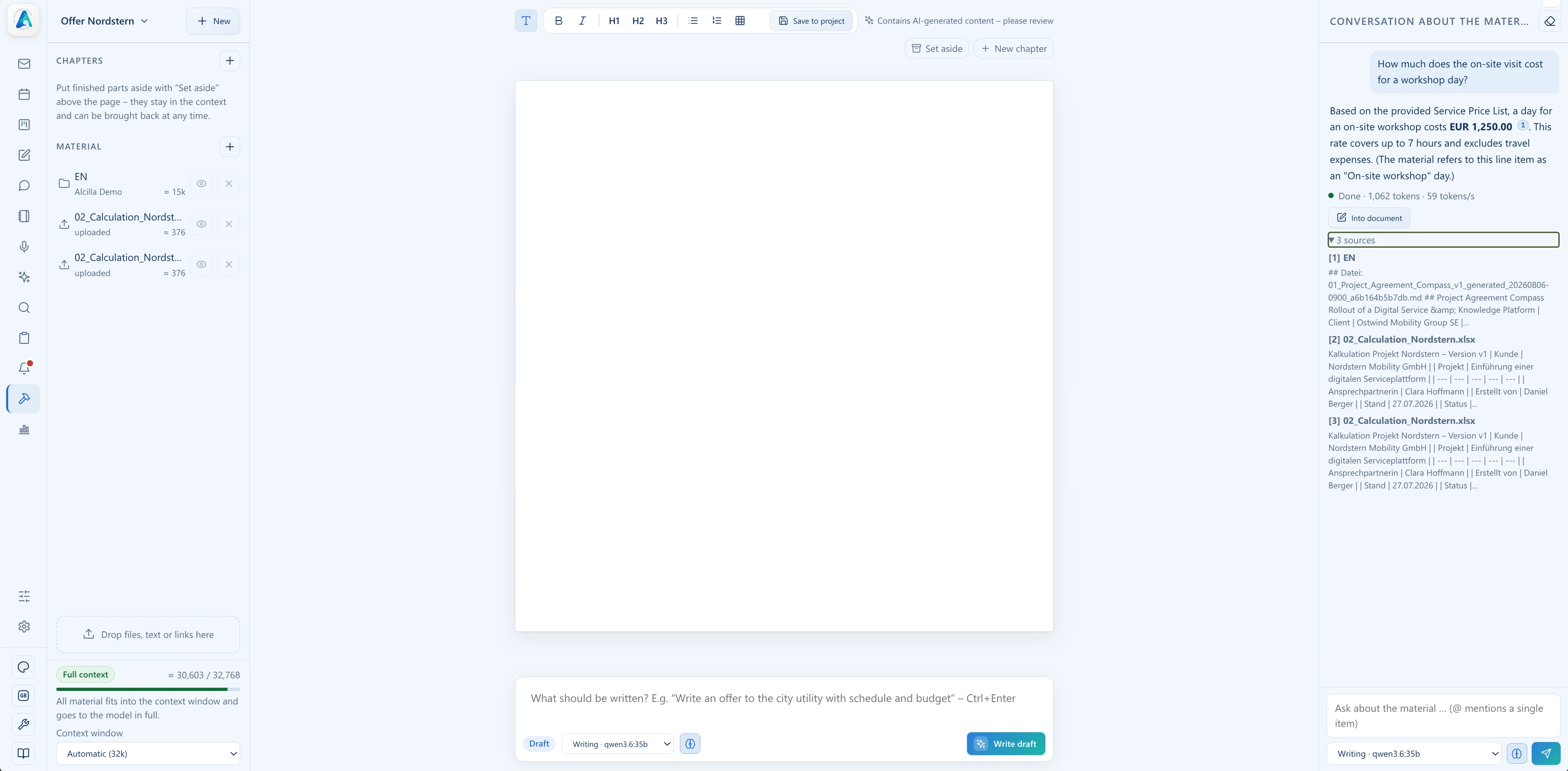
Query your sources in the material chat on the right, before writing, during, or after. The chat also knows the current draft.
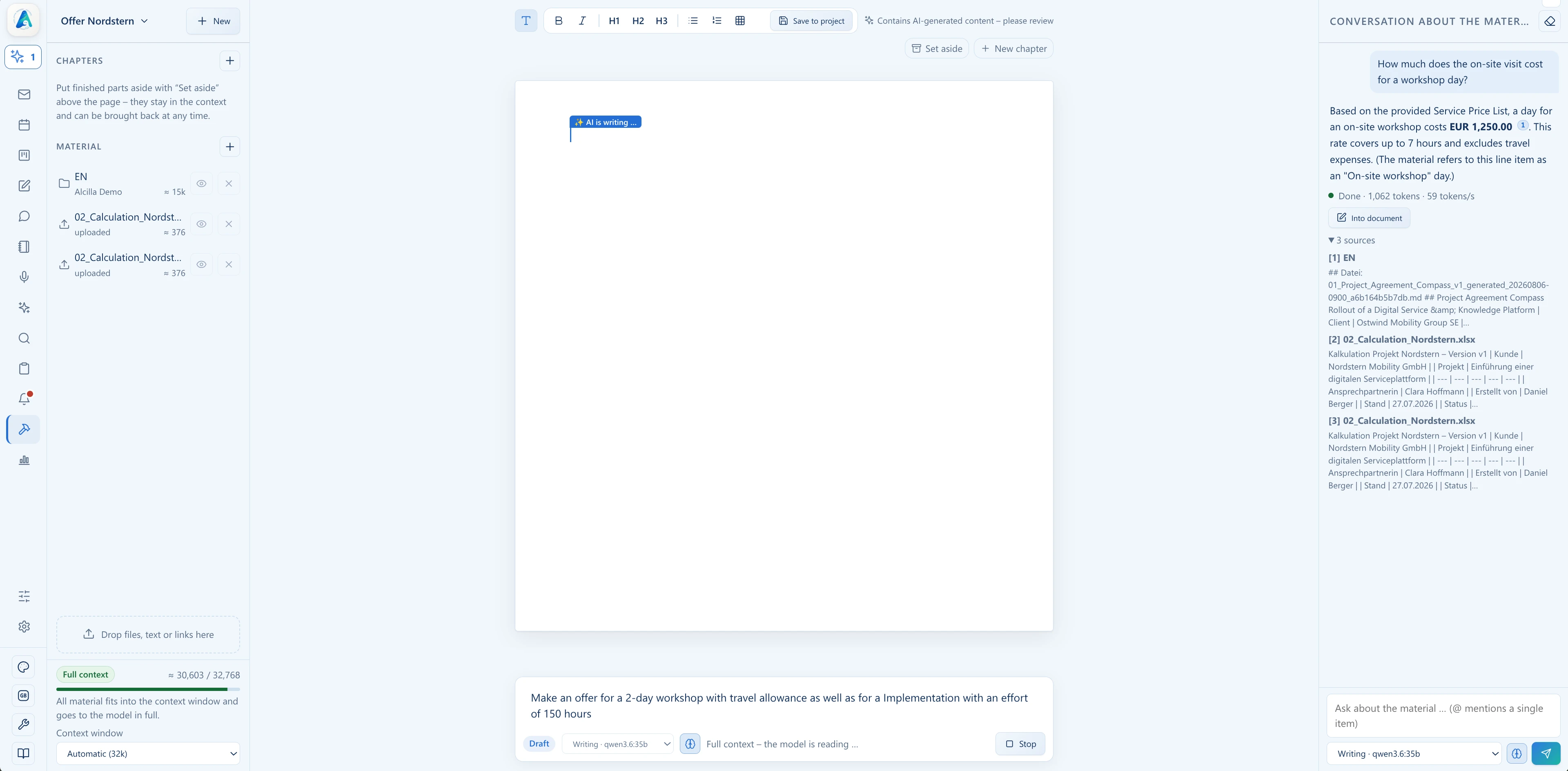
Describe the task in the center field and start the writing process.
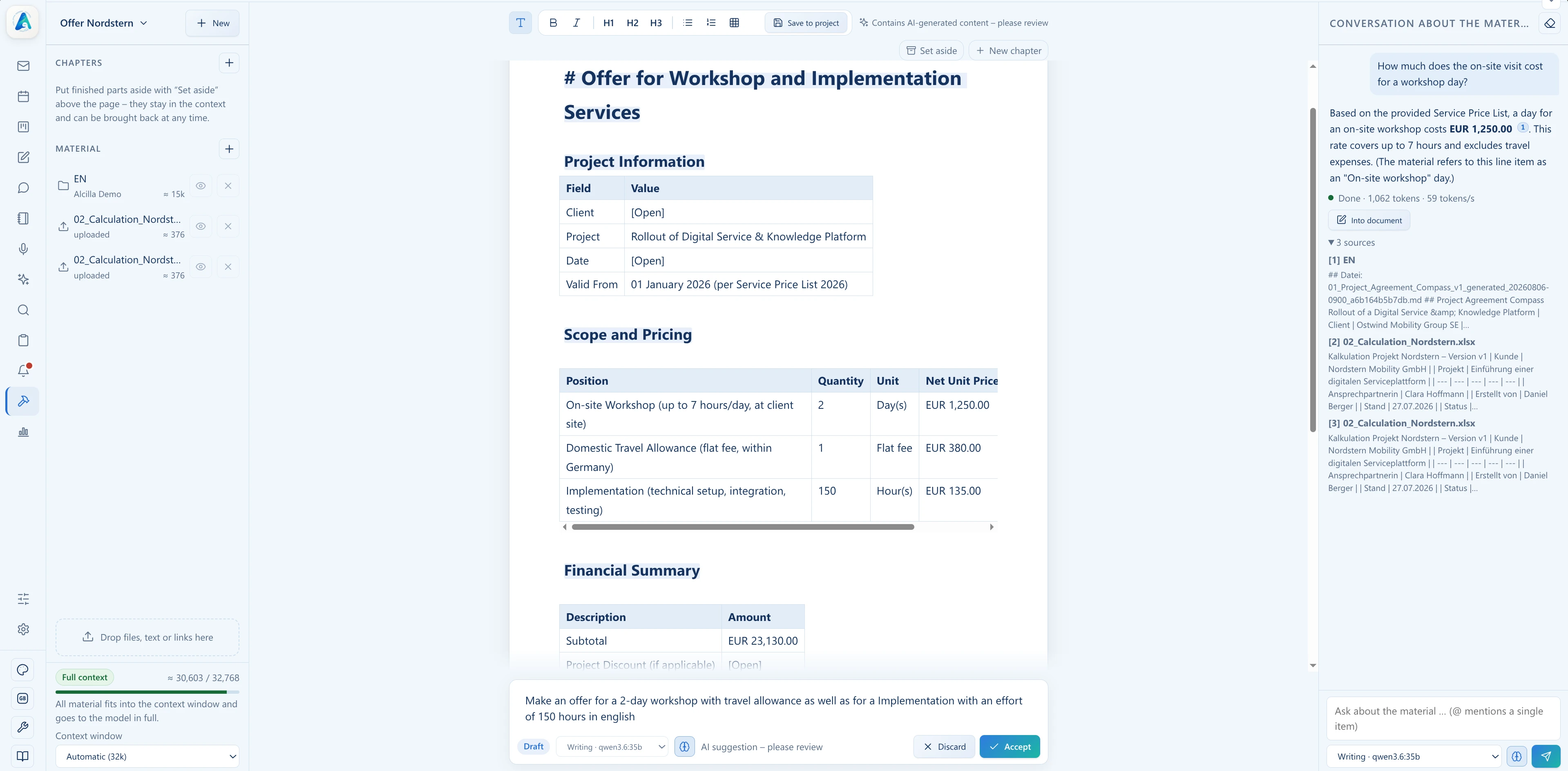
Read the AI draft in the editor, adjust structure, and fix content.
Through search and material selection, the workshop taps into the full Alcilla index. On top of that: external files, web pages, and free text.
Gather material, clarify questions, write a draft. That's how the workshop works. Best experienced in the demo.


